
Fetch the complete documentation index at: https://docs.utila.io/llms.txt Use this file to discover all available pages before exploring further.
Utila's developer documentation supports several AI-assisted workflows that help you understand and call the API faster:
llms.txt- machine-readable index of all published pages and API endpoints- MCP server (
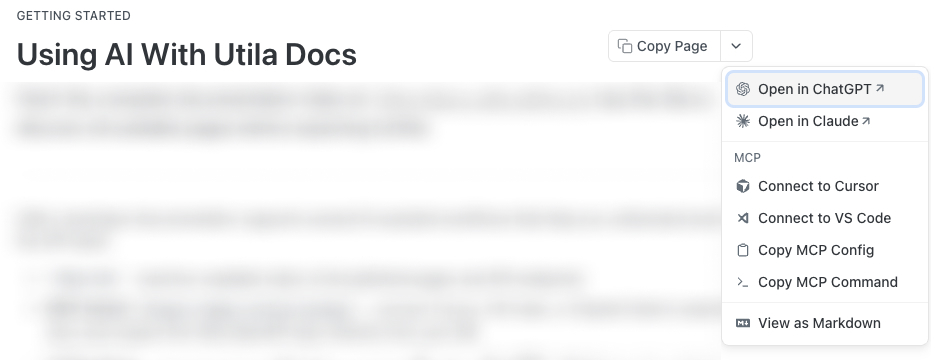
https://docs.utila.io/mcp) - connect Cursor, VS Code, or Claude Code to search docs and inspect the Utila OpenAPI spec directly from your IDE - AI Dropdown - copy any page as Markdown, or open Claude or ChatGPT with that page's context preloaded
These tools give AI assistants access to your published documentation and OpenAPI spec. They do not access your vault or the Utila API - for programmatic API access, authenticate with a service account.
LLM feed files
Fetch the complete documentation index at:
https://docs.utila.io/llms.txtThis is an auto-generated, always-current index of all Utila documentation pages and API endpoints - titles, descriptions, and links in a format optimised for LLMs. Use it to:
- Ingest into a custom GPT as a knowledge file
- Give an AI assistant a full map of Utila's documentation before asking questions
- Discover what pages exist before drilling into specific content
llms.txt contains links and summaries, not full page content. For full page content, use the MCP server (which can fetch individual pages) or append .md to any page URL.
Connecting to the Utila MCP server
The Utila MCP server at https://docs.utila.io/mcp exposes your IDE agent to Utila's documentation and OpenAPI specification. Once connected, your agent can:
| Tool | What it does |
|---|---|
list-endpoints | All API paths and methods |
get-endpoint | Full endpoint detail - parameters, auth, request/response schemas |
search-specs | Search across paths, operations, and schemas |
execute-request | Make live API calls against the OpenAPI spec |
list-specs | List OpenAPI specs in the project |
Claude
To use the Utila MCP server with Claude:
- Navigate to the Connectors page in the Claude settings.
- Select Add custom connector.
- Add the Utila MCP server:
- Name: utila-docs
- URL: https://docs.utila.io/mcp
- Select Add.
Then, to access the MCP server in your chat:
- Select the attachments button (the plus icon).
- Select the Utila MCP server.
- Ask Claude a question about Utila's documentation.
See the Model Context Protocol documentation for more details.
Claude Code
Run:
claude mcp add --transport http utila-docs https://docs.utila.io/mcpTo confirm:
claude mcp listFor a project-scoped config shared with your team:
claude mcp add --transport http --scope project utila-docs https://docs.utila.io/mcpThis writes to .mcp.json in your repo root. See the Claude Code documentation for more details.
Cursor
- Use
Command+Shift+P(Ctrl+Shift+Pon Windows) to open the command palette. - Search for "Open MCP settings".
- Select Add custom MCP - this opens the
mcp.jsonfile. - Add the following:
{
  "mcpServers": {
    "utila-docs": {
      "url": "https://docs.utila.io/mcp"
    }
  }
}- Reload Cursor (or restart MCP servers).
- In Cursor's chat, ask "What tools do you have available?" to confirm the connection.
Config applies globally from ~/.cursor/mcp.json. For a project-scoped config shared with your team, use .cursor/mcp.json in your repo root instead. See Installing MCP servers in the Cursor documentation for more details.
VS Code
MCP in VS Code works through GitHub Copilot Chat. Create a .vscode/mcp.json file in your project and add:
{
  "servers": {
    "utila-docs": {
      "type": "http",
      "url": "https://docs.utila.io/mcp"
    }
  }
}
See the VS Code MCP documentation for more details.
AI Dropdown - chat with any page
Every page on docs.utila.io has a dropdown menu (next to the Copy Page button) with the following options:
| Option | What it does |
|---|---|
| Open in ChatGPT | Opens ChatGPT with the current page's content preloaded |
| Open in Claude | Opens Claude with the current page's content preloaded |
| Connect to Cursor | Deeplink to add the MCP server in Cursor |
| Connect to VS Code | Deeplink to add the MCP server in VS Code |
| Copy MCP Config | Copies the MCP JSON snippet to your clipboard |
| Copy MCP Command | Copies the Claude Code CLI command to your clipboard |
| View as Markdown | Opens the current page as raw Markdown (same as appending .md to the URL) |
Copy Page / View as Markdown exports the current page only - not the full site. For cross-doc questions, the MCP server's search tools are more effective.
When to use which approach
| Approach | Best for | Notes |
|---|---|---|
| MCP server | Day-to-day development in Cursor, VS Code, or Claude Code | Best default - always searches the live index, can inspect OpenAPI spec |
| AI Dropdown | Deep dive on a single page | Opens Claude or ChatGPT with that page's full context |
llms.txt | Custom GPT knowledge file, periodic ingestion | Index only - links and summaries, not full content |
Per-page .md URL | Sharing or embedding a specific page | Append .md to any docs.utila.io URL |